

How to Create a Custom Jigsaw Puzzle: Step by Step
Published October 1, 2026; updated October 1, 2026
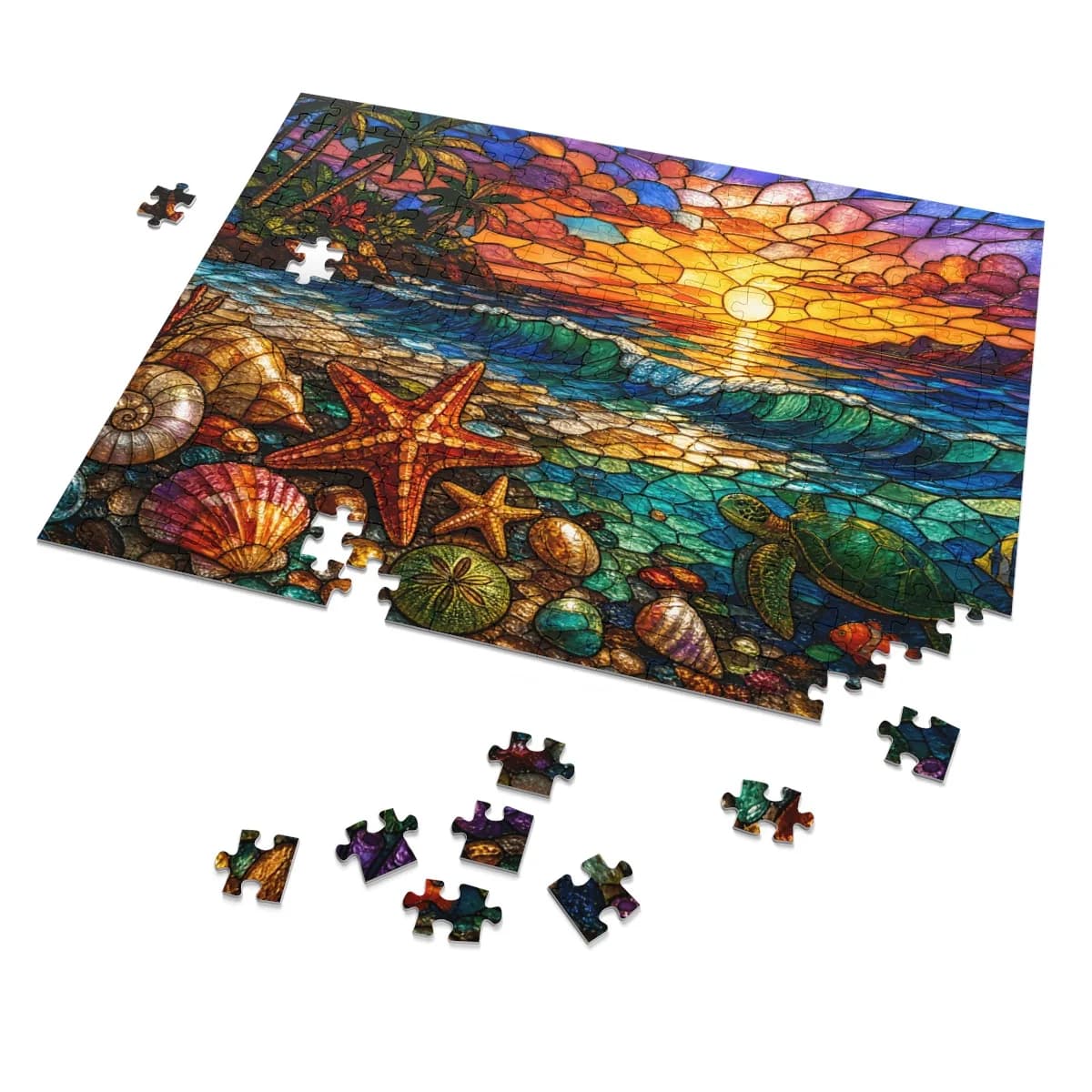
Turn a written idea into an AI-generated jigsaw puzzle design, then order it with a matching printed white metal tin. Start with a scene, a gift recipient or an inside joke. You can inspect and adjust the picture before deciding to order.
The puzzle generator creates artwork from a description and art direction. It does not accept photo, logo or artwork uploads. If you prefer an existing design, browse the ready-made jigsaw puzzles.
Still choosing the right kind of gift? Read AI-generated puzzles vs photo puzzles before starting.
1. Describe the picture you want
Open the puzzle generator and describe the subject, setting, colors and details that matter. Ask for the picture itself rather than a picture of puzzle pieces. For a gift, describe the person's interests without expecting the generator to reproduce a specific photo.
A cozy seaside bookshop at sunset, with a sleepy orange cat in the window, colorful books, flowering window boxes and a sailboat in the distance. Warm light and plenty of small details to discover.
Distinct objects and areas of color can make a puzzle more interesting to assemble. If you request lettering, put the exact words in quotation marks and plan to inspect every letter.
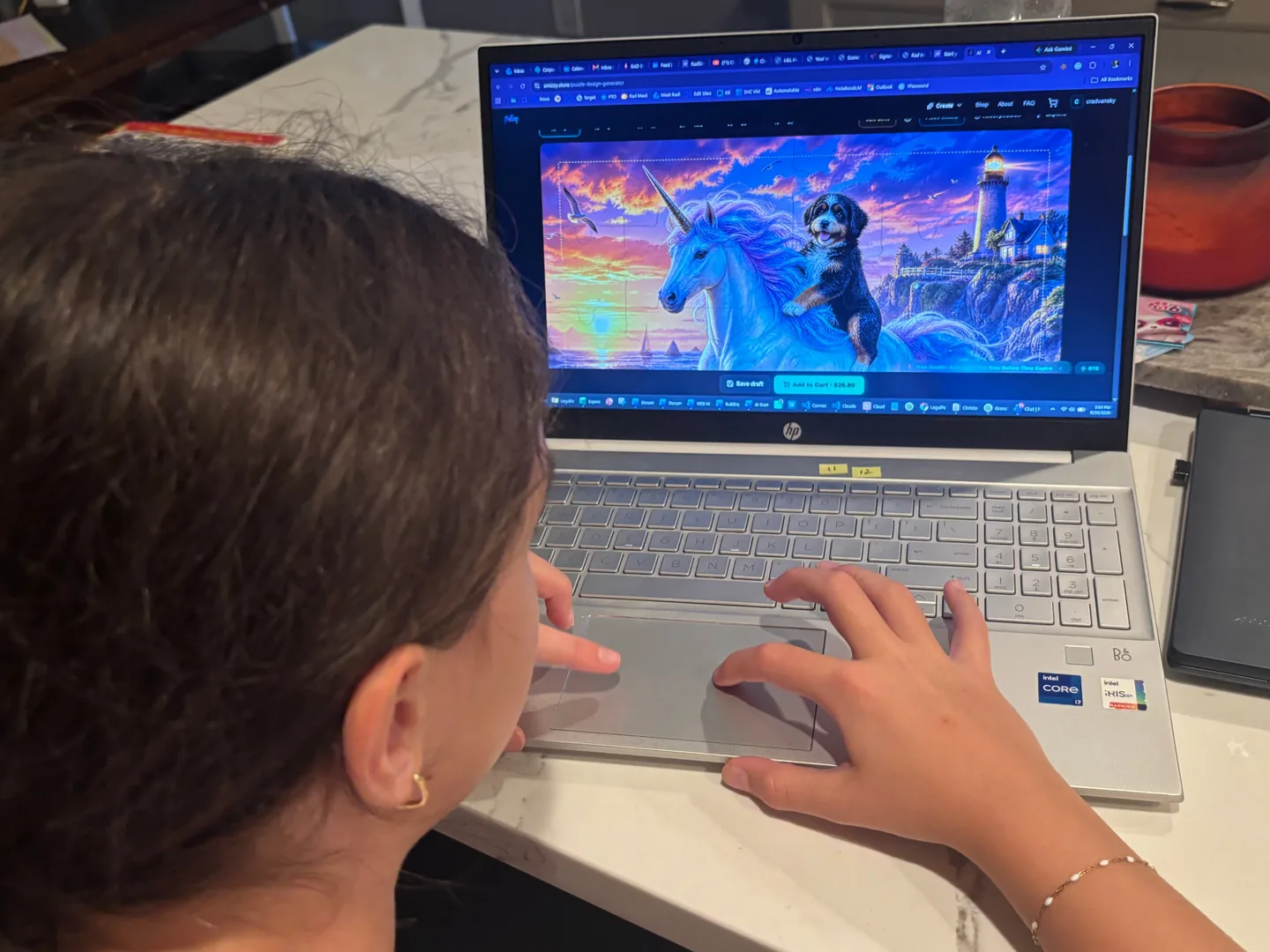
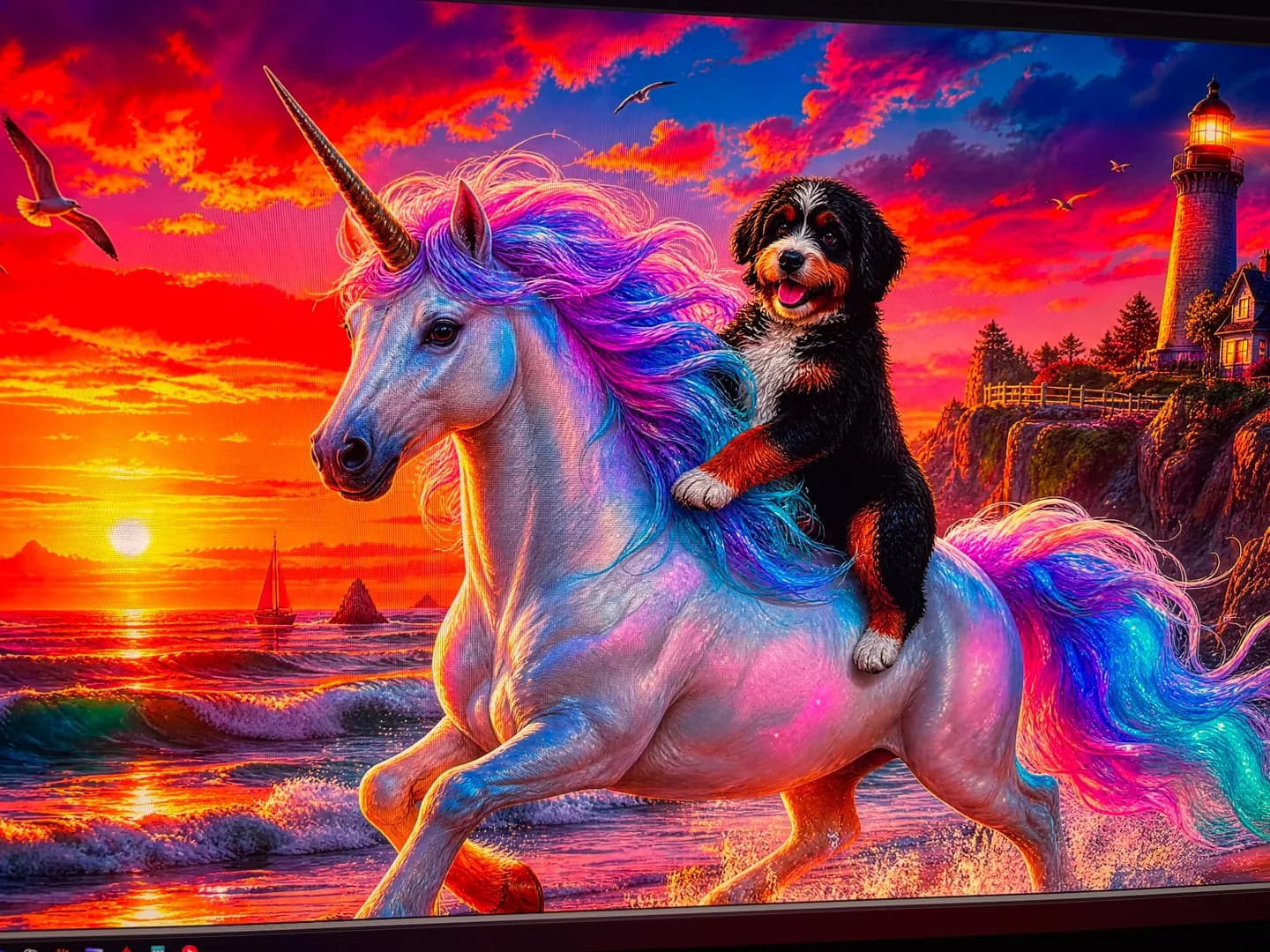
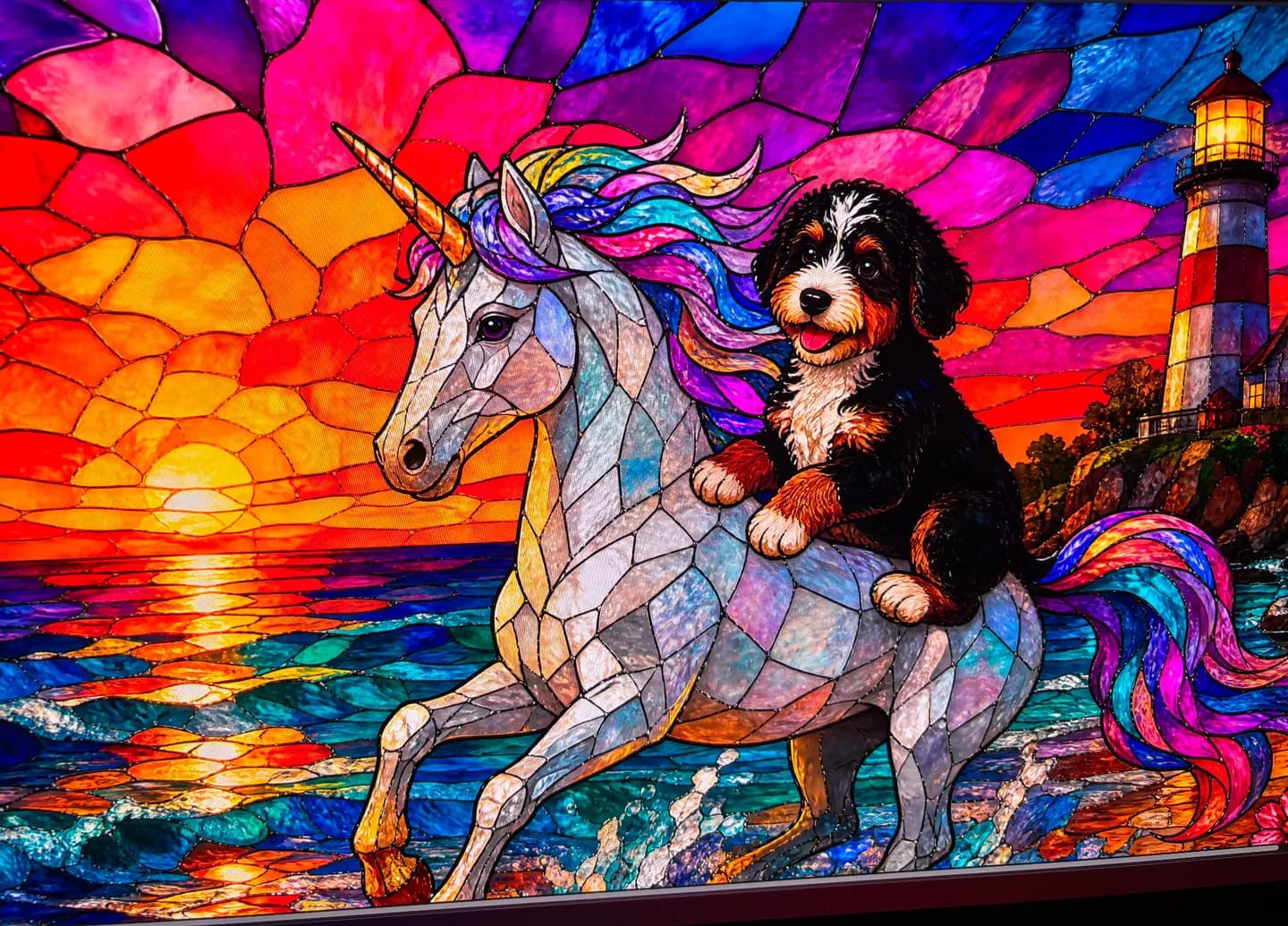
A user example: a unicorn, a puppy and a sunset
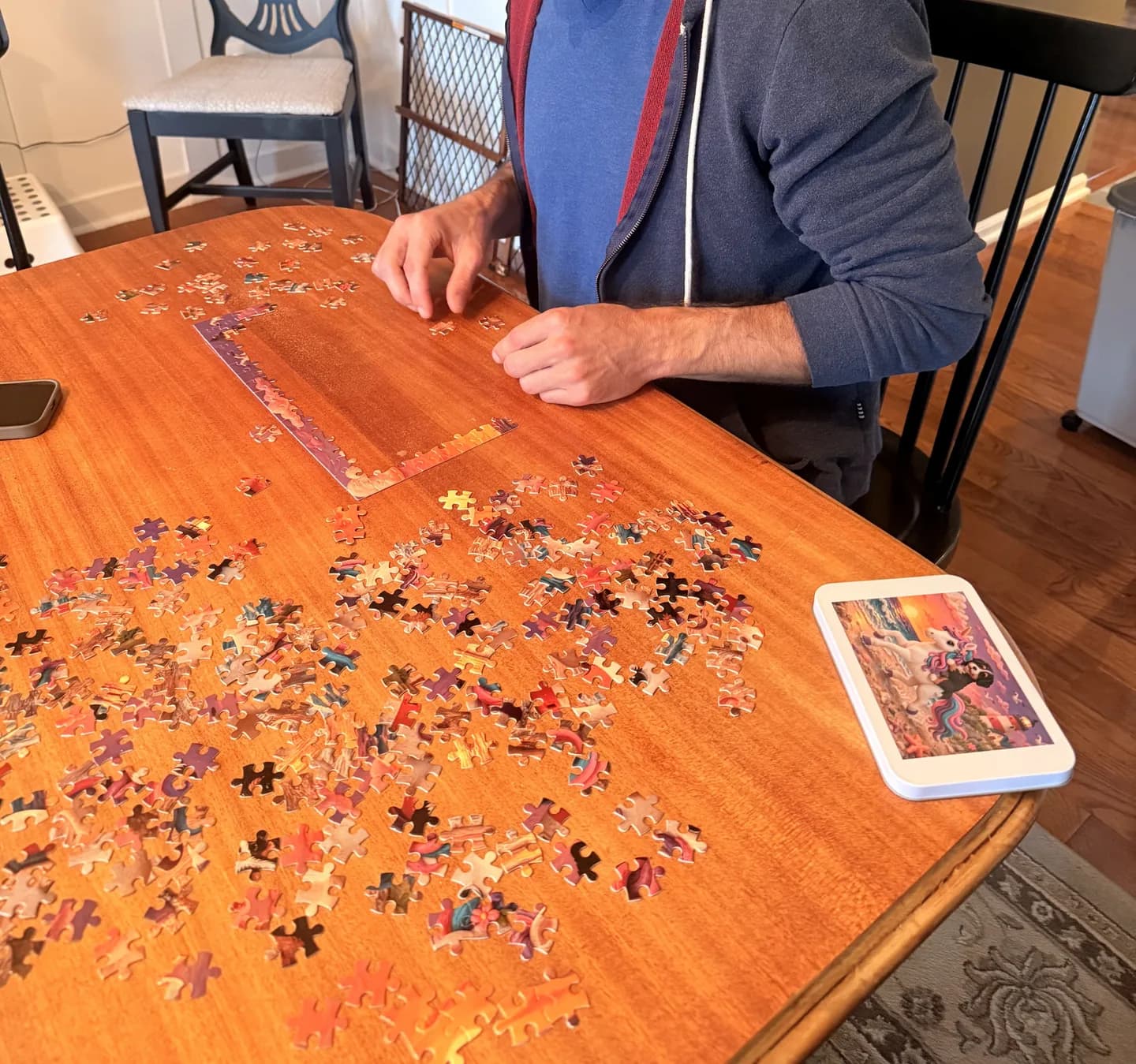
This example follows a girl exploring a puppy riding a rainbow-maned unicorn beside a lighthouse. The photos show her reviewing the design and the initial artwork on screen. Follow the same choices with a subject of your own.
This RPG-themed demo starts with a party of adventurers exploring a cave, using a geometric abstract art direction. After reviewing the result, the creator requests an edit to move a paladin's shield to the correct hand, then inspects the revised artwork with and without the simulated puzzle seams. It shows why checking small details matters before ordering.
2. Choose an art direction and generate
Choose an Art direction, such as Stained glass, Storybook or Watercolor. You can enlarge a style example before choosing. The example suggests an aesthetic; it is not a promise that your result will match it exactly.
Review your available generation credits, complete verification if requested, then select Generate puzzle! Creating or editing artwork uses a credit. Keep the page open while the artwork is prepared. Generation time varies. You can start as a guest; signing in is needed to save a draft or share it.
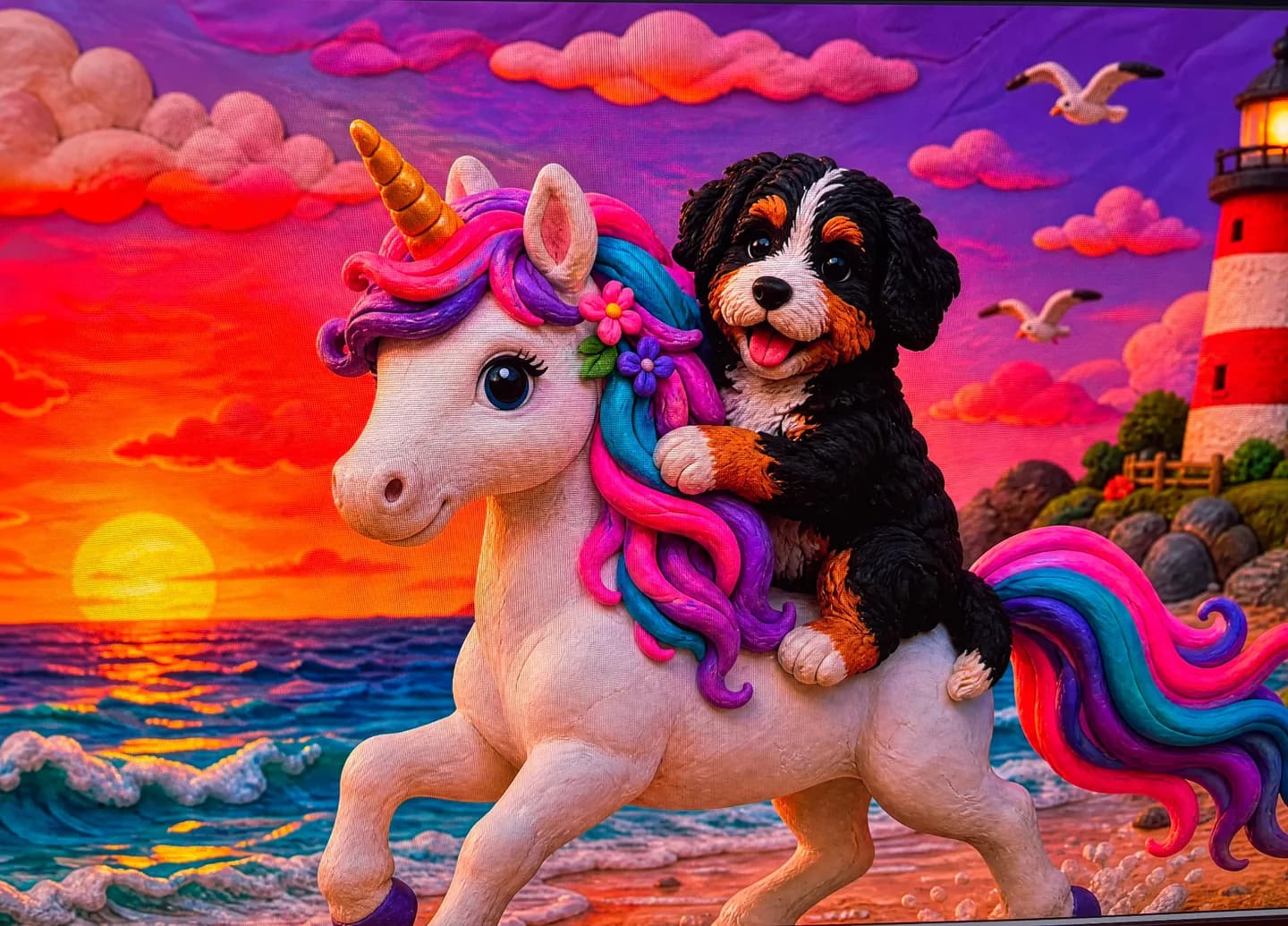
Compare two art directions from the unicorn-and-puppy example. The subject remains recognizable, while the texture, shapes and details change. Choosing an art direction can help you explore the look you want; it does not guarantee an identical composition.
These two short videos explore an RPG puzzle theme in stained glass and storybook art directions. They show different results for the theme, not a promise that changing styles will preserve every detail.
In the stained-glass version, adventurers appear between a spider and a goblin in the composition. The creator drags the artwork to bring more of the edge characters into view and checks the framing guides and seam preview. Use the same review step to decide which parts of your own picture should stay visible.
The storybook version revisits the RPG scene with a different illustrated look. The creator points out the spider, treasure and central characters, then considers a 500- or 1,000-piece puzzle. Treat that as a preference for this picture: choose your own piece count for the artwork, recipient and available space.
3. Choose an available piece count
After your artwork appears, choose a piece count. You can preview the same picture at another available size without generating new artwork. The supported formats below are landscape; the generator does not offer a portrait-orientation switch.
| Pieces | Finished size |
|---|---|
| 30 | 10" × 8" |
| 110 | 10" × 8" |
| 252 | 14" × 11" |
| 500 | 21" × 15.5" |
| 1,000 | 30" × 20" |
| 2,000 | 40" × 28" |
Choose the size for the person and the space where they will assemble it. If a size is unavailable, select another available option or return later. Review the selected size again before adding it to the cart.
4. Inspect the artwork and its position
Check faces, hands, objects, spelling and important details. Drag the artwork or use the available position arrows to adjust its framing. Reset position recenters it. Changing the piece count can change the framing, so check each size you intend to order.
Use Safe zone to keep important details clear of the edges. Piece seams helps you imagine the assembled puzzle, but the manufactured cut pattern can differ. Use Expand to inspect the preview more closely; zoom in that view changes what you see, not the printed framing.
The puzzle preview is a product simulation. Review the artwork itself as well as its position; screen colors and the physical print can differ.
5. Make a focused edit if needed
Open Edit artwork and describe one clear change, such as "make the cat orange and keep the bookshop unchanged." Check your available credits before submitting. An edit can affect more than the requested detail, so inspect the full result and position again.
Edits keep the artwork's existing art direction. Selecting a different Art direction applies to a new generation, not a style change to the current picture. Save the current version first if you want to keep it before editing or starting another design.
6. Save a draft or share a preview
Sign in and choose Save draft to return to the design from your gallery. Follow the displayed draft capacity and read the FAQ for retention information; saving is not permanent storage or a download of a print file.
Use Share to open your device's sharing options or copy a preview link. Saving and sharing are optional steps. If you change the artwork or framing afterward, review and save the version you want to keep.
7. Review the quantity, cart and checkout
Choose how many copies you want, confirm the piece count and current price, then select Add to cart. Each puzzle includes a matching white metal tin printed with your artwork.
Open the cart and confirm every item, size, quantity and shipping charge. Continue to secure checkout to review the total and delivery address before payment. Guest checkout is supported; an account is not required just to place an order.
Availability and pricing are checked again when you order. Read the Shipping Policy and Return & Refund Policy before buying. Production and delivery estimates are not guaranteed arrival dates.
Create your puzzle or read Getting Started with Smizzy for help choosing a product.